PanoFuser
PanoFuser app icon

PanoFuser 1.3.2

PanoFuser

A clean, focused panorama maker for people who want more control than a quick sweep. Import or capture source photos, stitch locally, refine the result, and save it back to Photos.

App Store link coming soon See the workflow
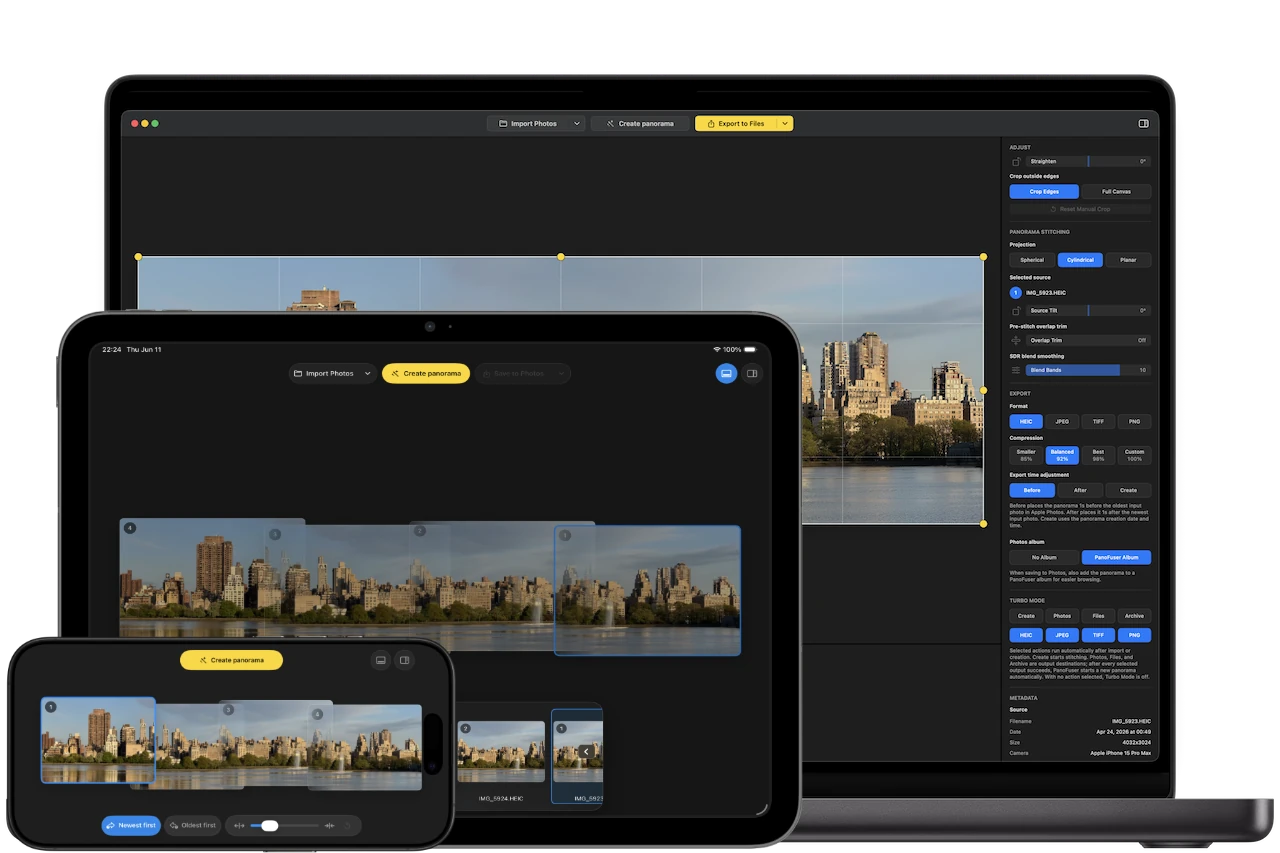
PanoFuser shown on MacBook, iPad, and iPhone
Local stitching No upload service, no account, no analytics.
Photos and files Start from Apple Photos, Finder, Files, drag and drop, or Camera.
Mac, iPad, iPhone One focused panorama workflow shaped for each screen.
Supported HDR HEIC Preserve compatible HDR appearance when source photos and output support it.

Why PanoFuser exists

I wanted a panorama workflow that fit the way I actually photograph.

There are panorama apps out there. But I wanted something that felt simple when I came back with photos and already had the source frames in front of me. I use both iPhone and a digital camera, and I often capture panoramas as individual overlapping frames instead of using the built-in iPhone panorama sweep. The sweep is convenient, but it has limits.

When those source photos are already in Apple Photos, I want to select them, stitch the panorama in high quality, check the result, and save it back into the same library without losing the context around the original photos.

PanoFuser was built for that missing step: turn selected source photos into a finished panorama, keep the workflow local and focused, preserve useful metadata where available, and let the result land where it belongs.
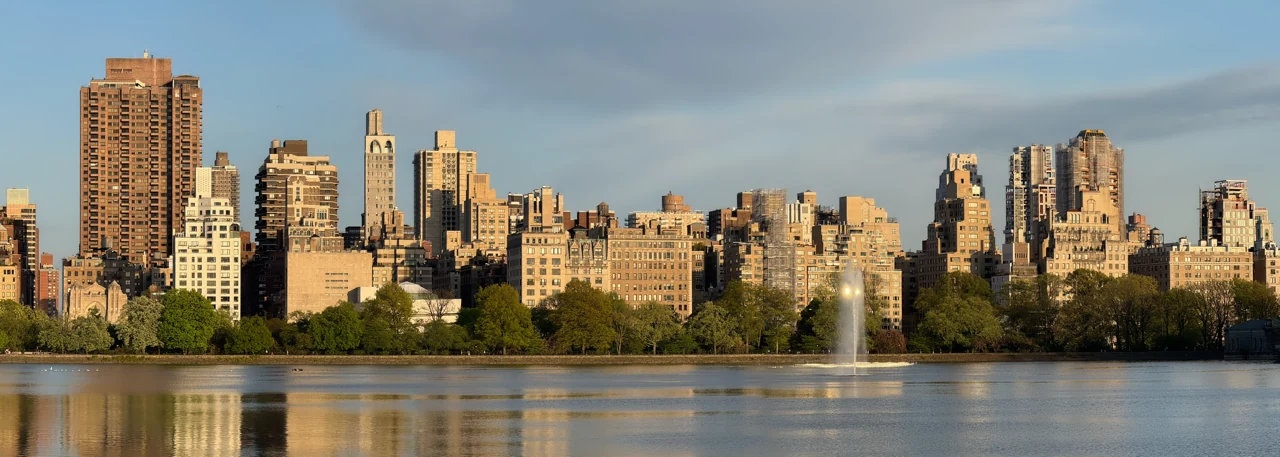
Final panorama export created in PanoFuser
Example panorama output created from the workflow shown below.

Keep panoramas in the Photos timeline.

PanoFuser can save the finished panorama back to Apple Photos as a new asset. You can choose whether the output is placed before the oldest source photo, at creation time, or after the newest source photo, so finished images do not end up detached from the moment they belong to.

Carry over useful photo context.

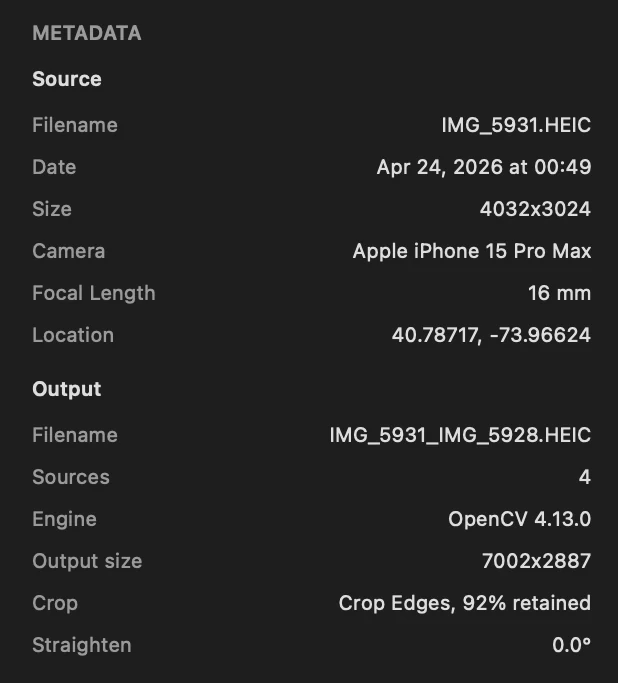
When source metadata is available, PanoFuser can inherit details such as capture date and time, camera model, focal length, and GPS location. That makes the finished panorama easier to find and understand later in Photos or another library.

Keep camera work organized on disk.

For camera sets, I often clean up and sort files on disk first. PanoFuser can export the panorama and build an archive folder with the output and source photos, so there is a tidy backup outside the Photos library.

Treat HDR as part of the workflow.

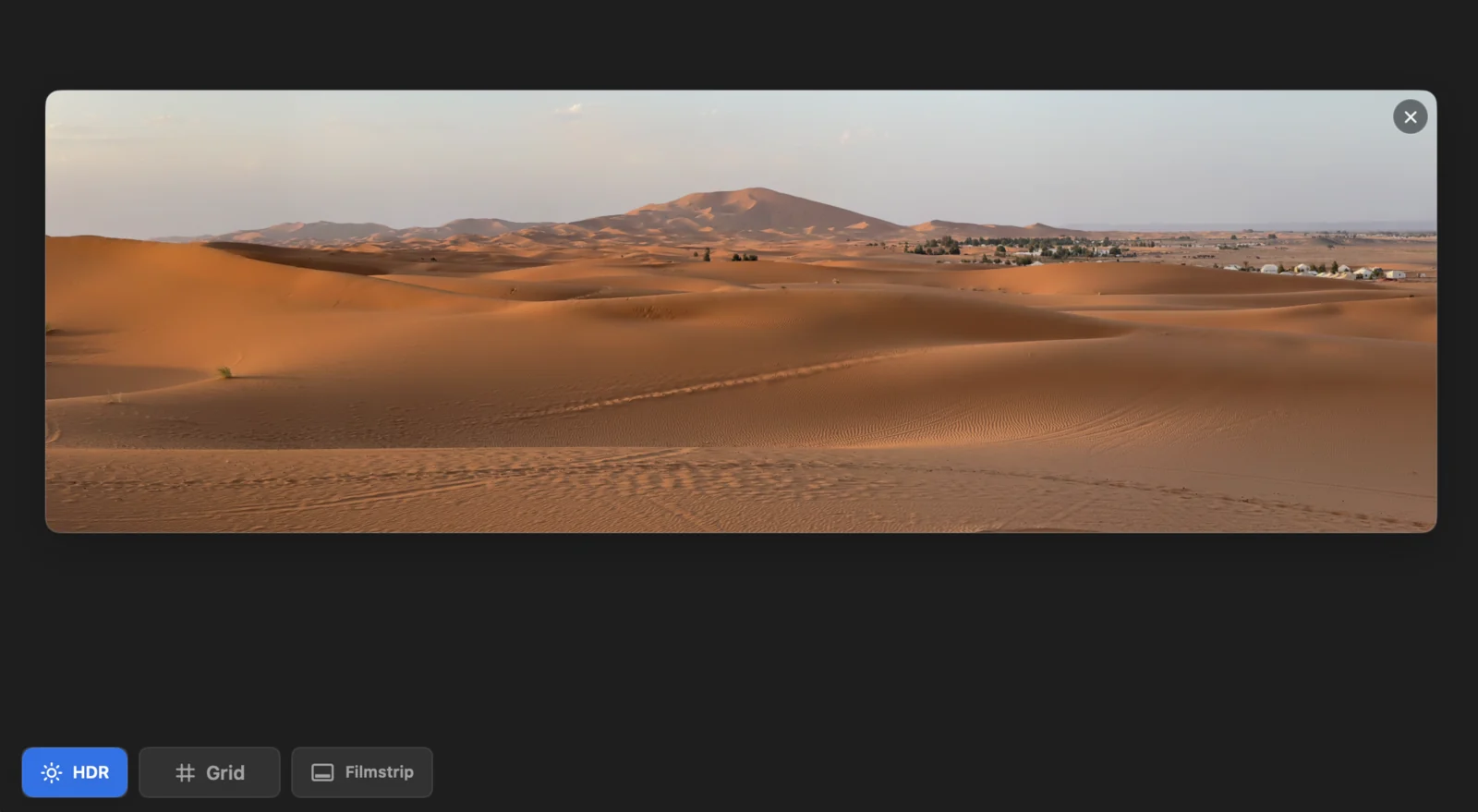
HDR gives photos another level of life in the Apple ecosystem. For supported HDR photo sets, PanoFuser can preview HDR on HDR-capable displays and preserve compatible HDR appearance in HEIC panorama exports.

Automate the steps you already trust.

Turbo Mode can run selected actions automatically: Create, Save to Photos, Export to Files, and Archive. Use it when you know the source set and want PanoFuser to move through repeated output steps without stopping for every confirmation.

Capture directly on iPhone and iPad.

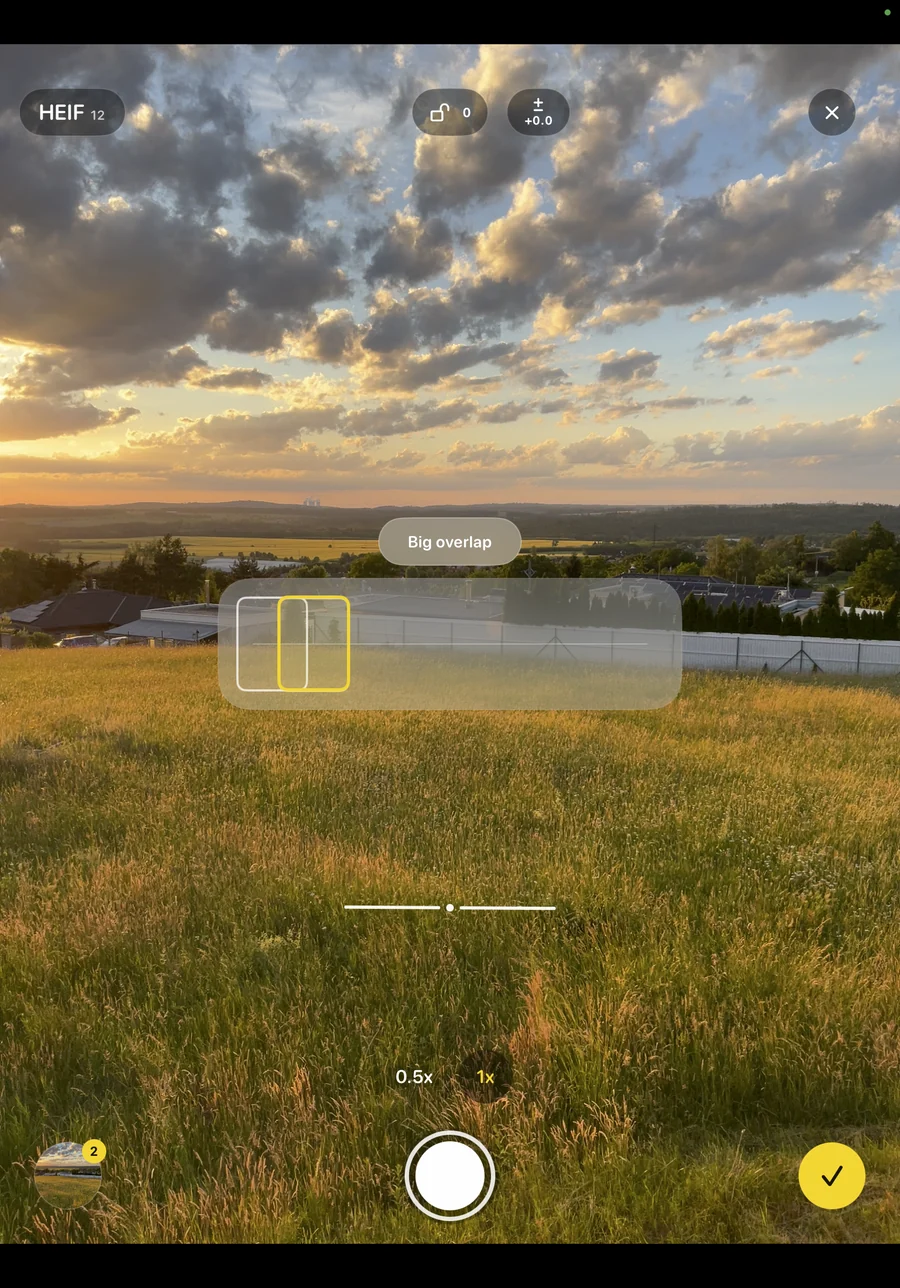
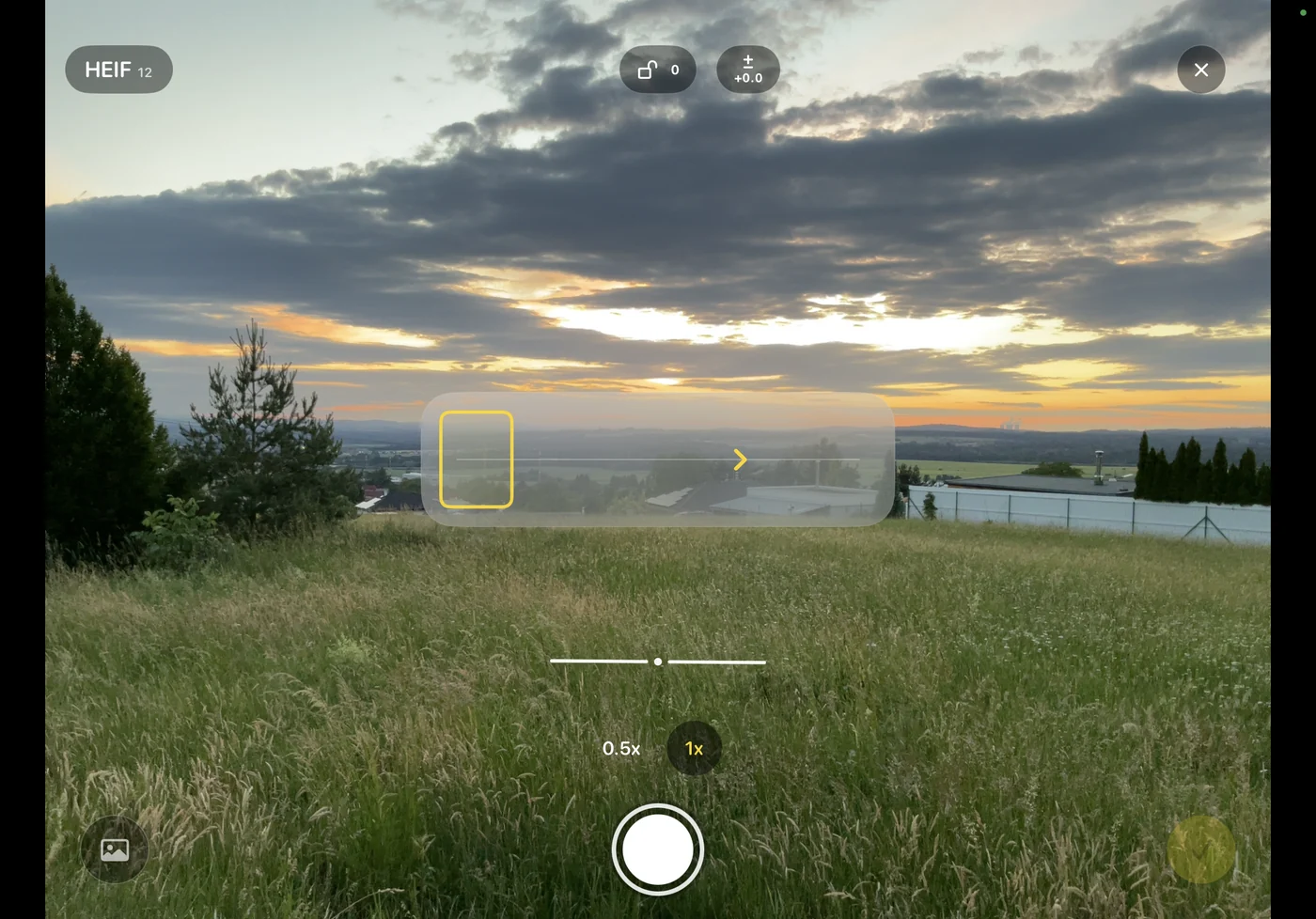
Guided Camera helps you capture source photos directly in PanoFuser. It uses device orientation information and shows practical overlap guidance, helping you capture enough shared detail without wasting too much of each frame.

What you get

A focused panorama tool, not another general photo editor.

01

Start from real photo sets

Import overlapping photos from Apple Photos or files. On Mac, drag images onto the canvas or open selected Photos images with PanoFuser.

02

Capture on location

Guided Camera on iPhone and iPad helps you capture source photos directly in the app with overlap guidance for later stitching.

03

Create locally

Panorama creation, preview, crop, metadata preparation, and export happen on your device. Source photos stay untouched.

04

Refine the result

Use grid, manual crop, Straighten, projection, Source Tilt, overlap trim, blend quality, and export controls when the source set needs extra care.

05

Save where it belongs

Save finished panoramas back to Apple Photos as new assets, export HEIC, JPEG, PNG, or TIFF files, or archive the source set with the output.

06

Preview supported HDR

For supported HDR photo sets, PanoFuser can show HDR preview on HDR-capable displays and preserve HDR appearance in HEIC panorama exports.

Guided Camera

Capture the source set when you are still on location.

On iPhone and iPad, PanoFuser can capture panorama source photos directly in the app. The camera view shows practical overlap guidance, so neighboring frames share enough detail for stitching without wasting too much of each photo on repeated content.

Captured photos enter the same source review workflow as imported images, with device orientation information helping the app prepare the set before panorama creation.

PanoFuser Guided Camera showing overlap guidance while capturing panorama source photos

Workflow

Import. Create. Refine. Output.

PanoFuser keeps the panorama process visible. The app moves from source review to stitching to output without burying the core flow under a full editing suite.

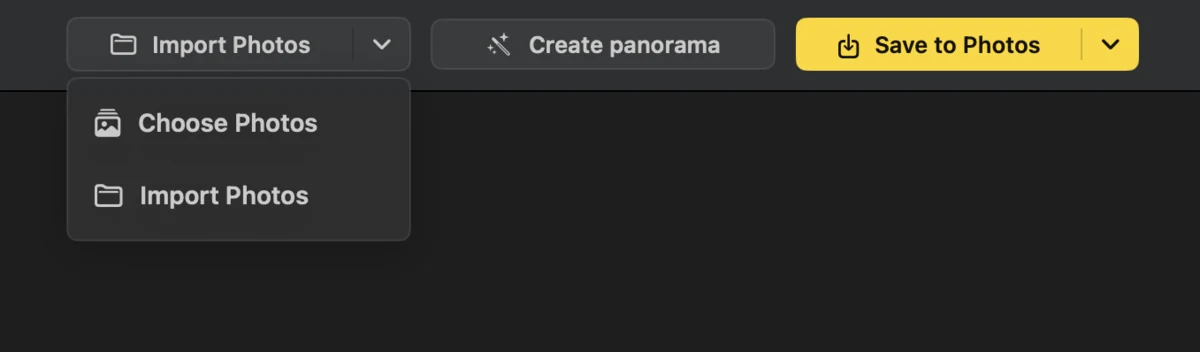
PanoFuser import menu with ways to bring in source photos
Step 1

Bring in the photos.

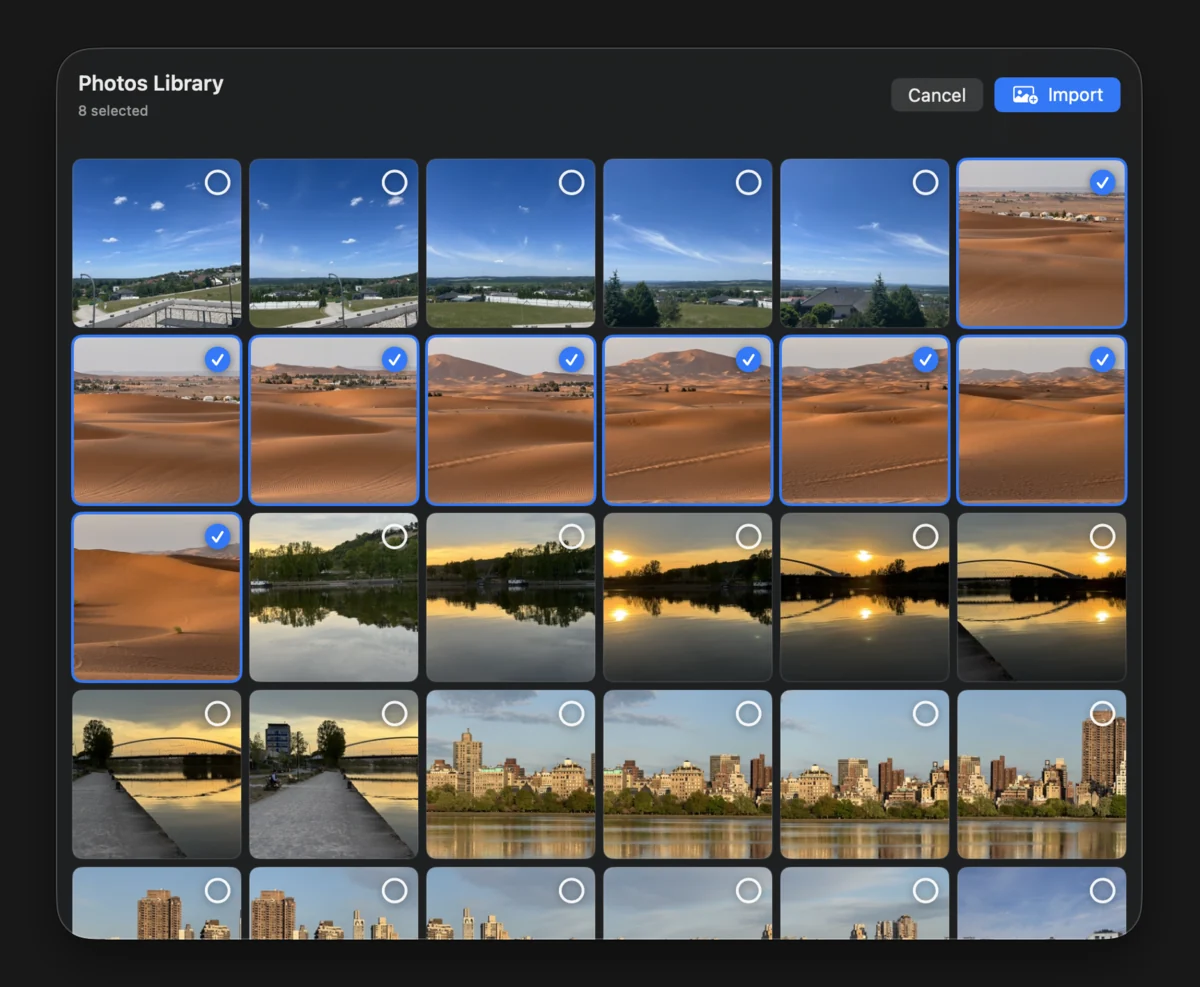
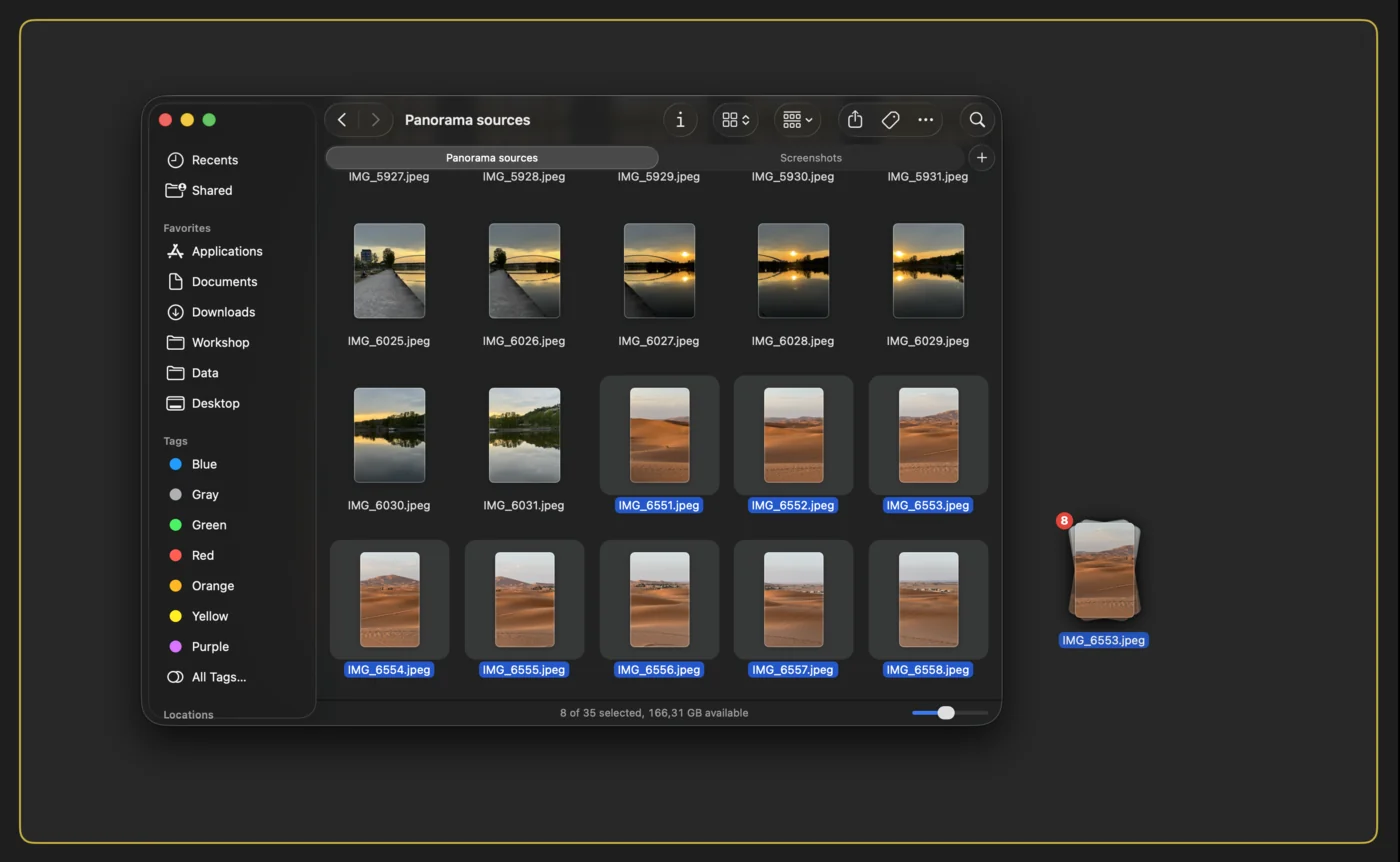
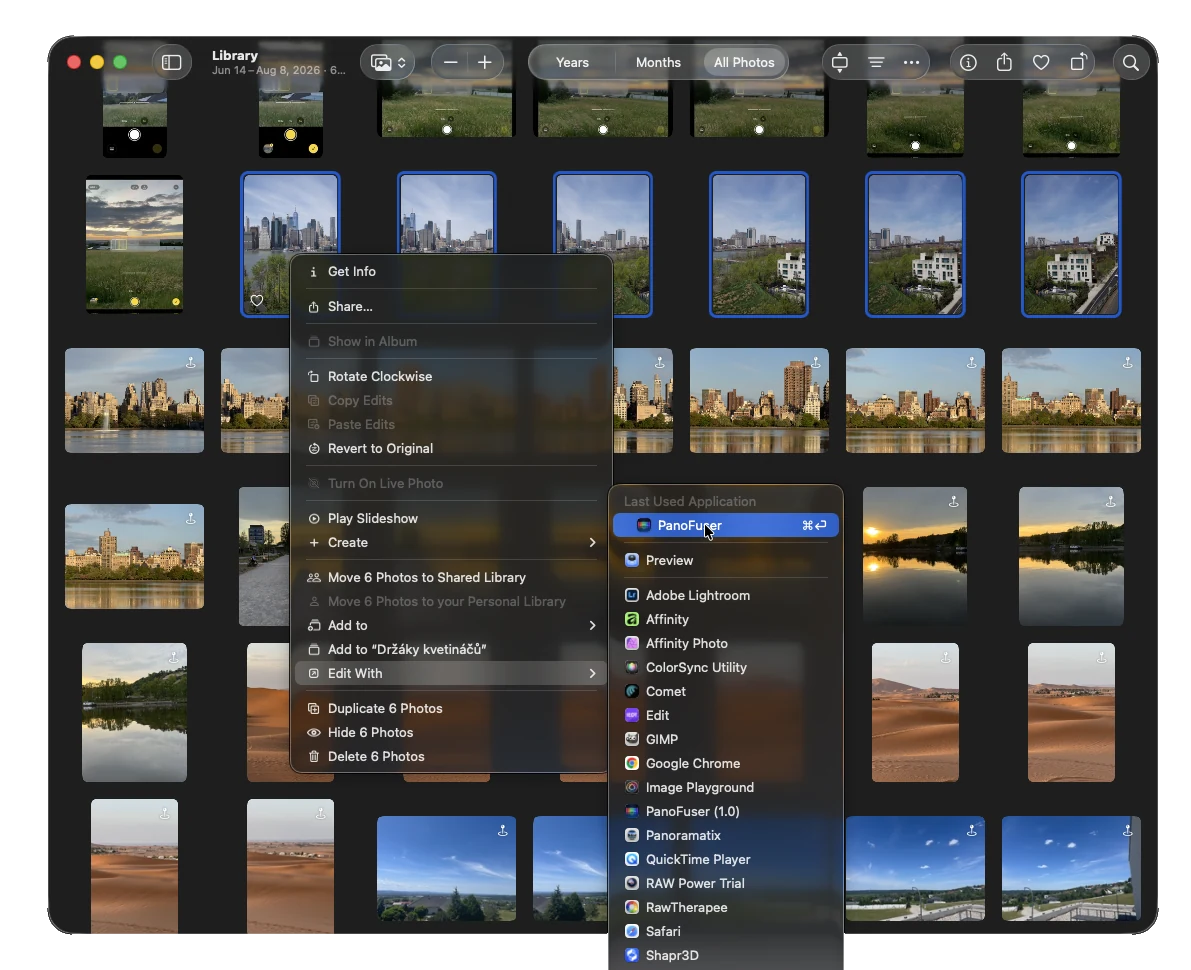
Choose photos from Apple Photos, import image files, drag photos in on Mac, use Edit With from Apple Photos, or capture a source set with Guided Camera on iPhone and iPad.

Apple Photos picker with panorama source photos selected
Choose Photos
Dragging image files into PanoFuser on Mac
Import Photos
Apple Photos Edit With menu showing PanoFuser
Edit With on Mac
PanoFuser Guided Camera capture view with panorama source photos
Guided Camera
Step 2

Review before stitching.

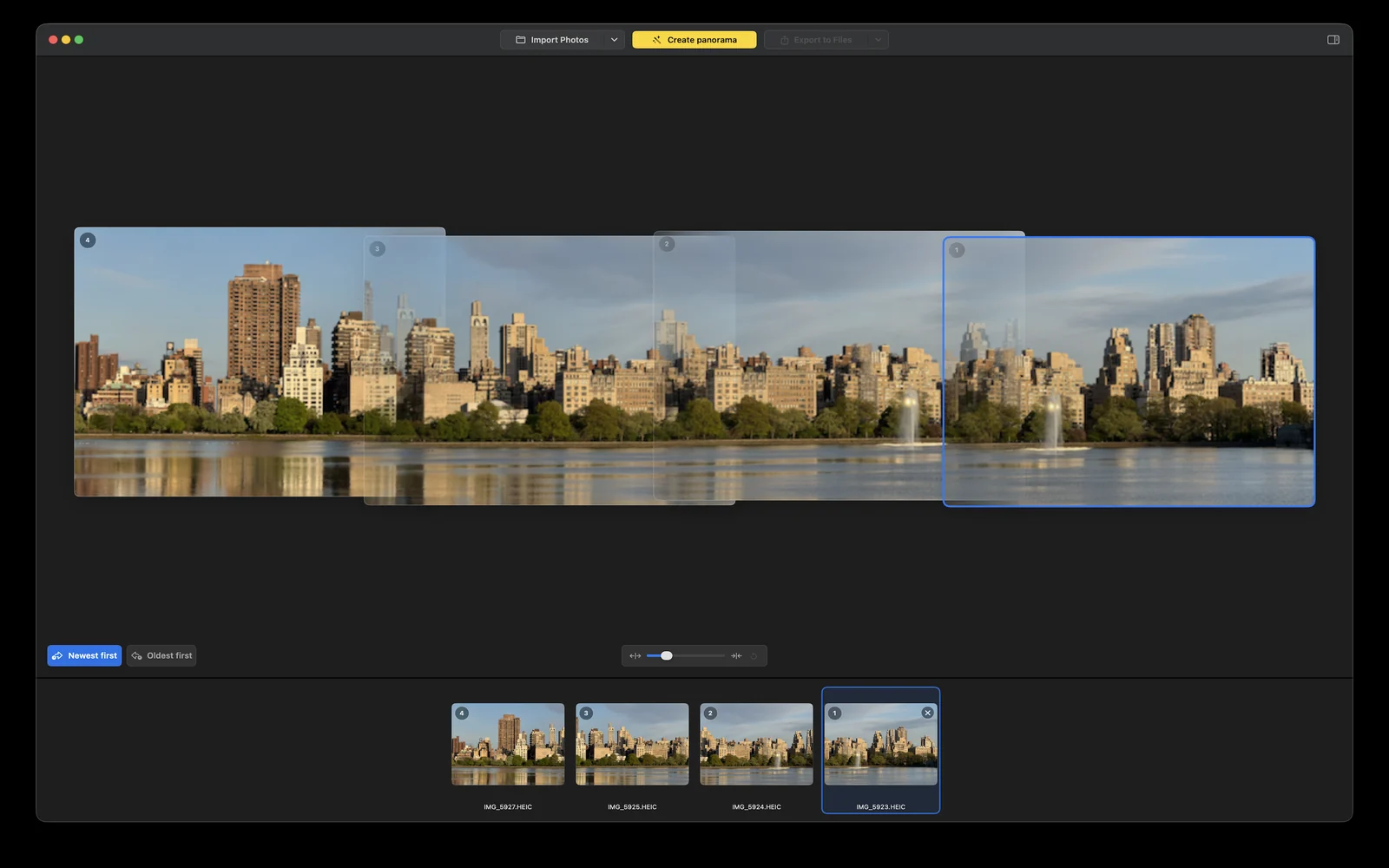
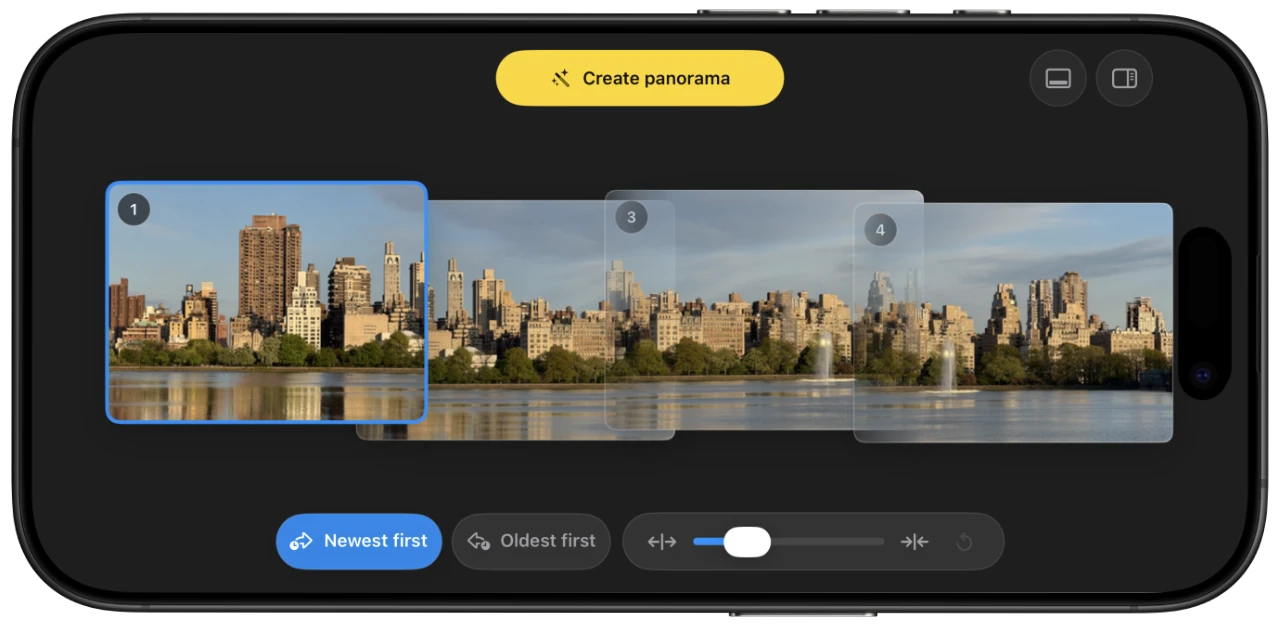
Check that every source is present, review overlap, sort by capture time, reverse the sequence, or manually reorder the filmstrip before creating the panorama.

PanoFuser on Mac with imported source photos ready for panorama creation
PanoFuser filmstrip with imported panorama source photos ready for review
Review the source order before stitching.
Step 3

Level, crop, and inspect.

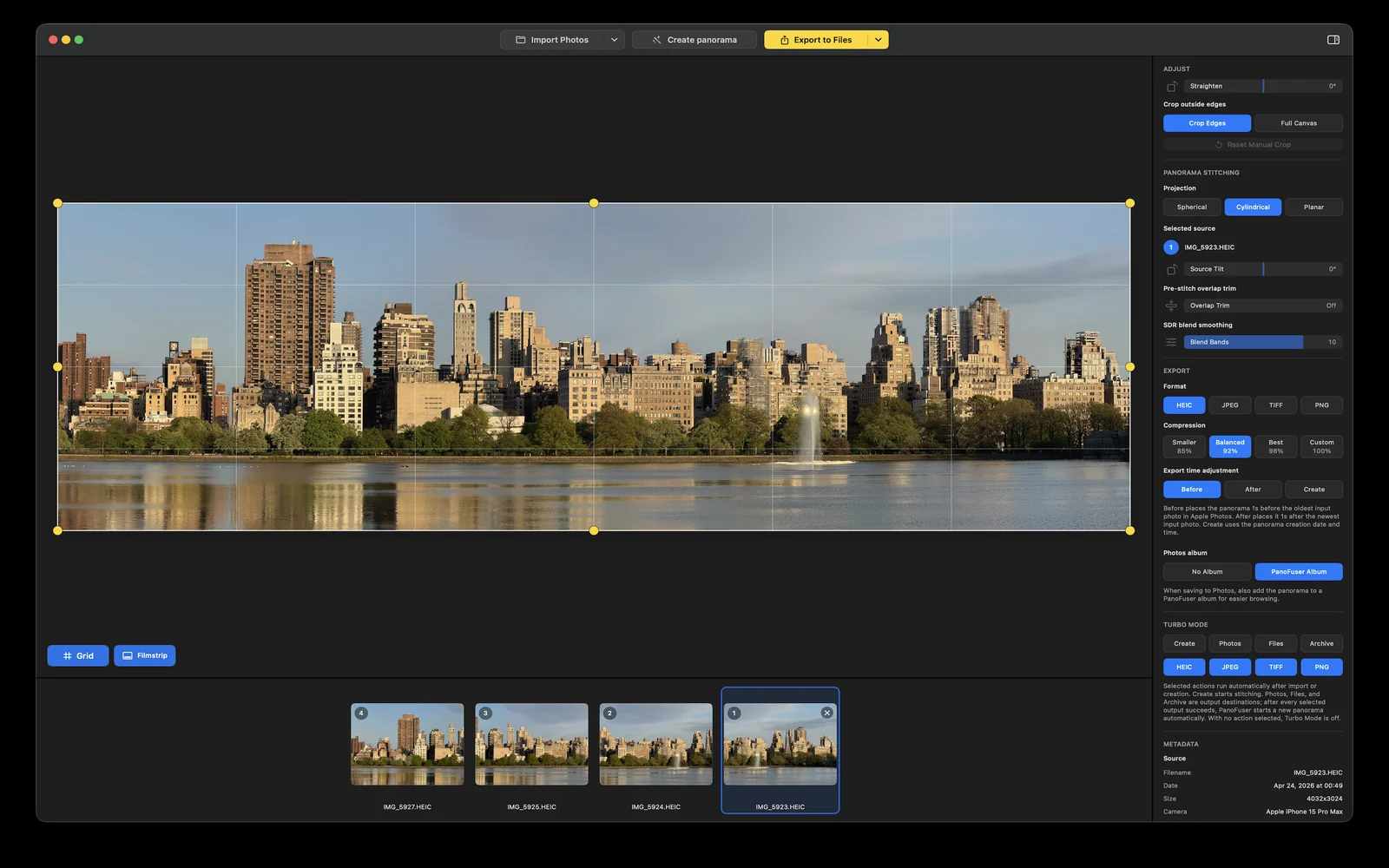
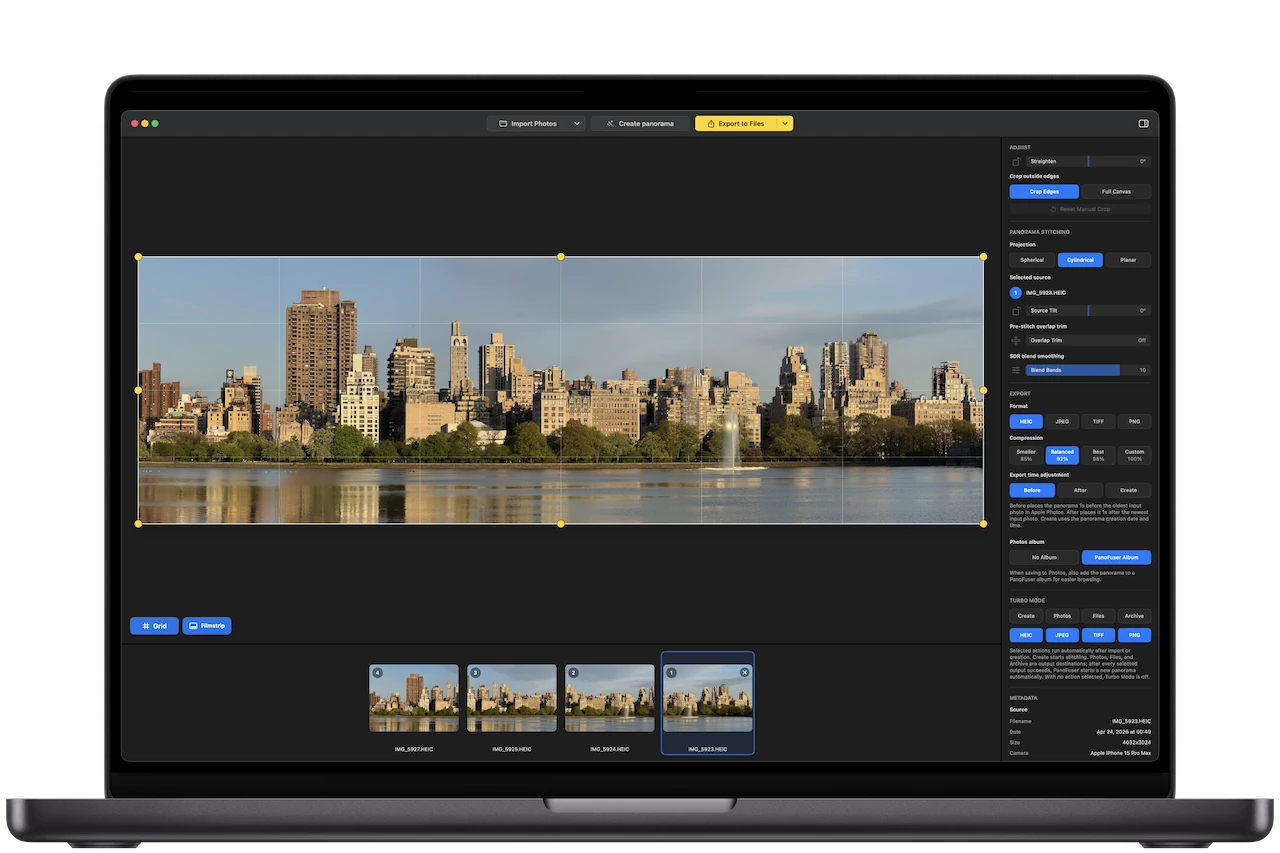
After stitching, use the grid to judge horizon and composition, adjust the crop, straighten the result, and open the inspector only when advanced controls are useful.

PanoFuser on Mac with stitched panorama, adjustment controls, and export options
Step 4

Save to Photos or export files.

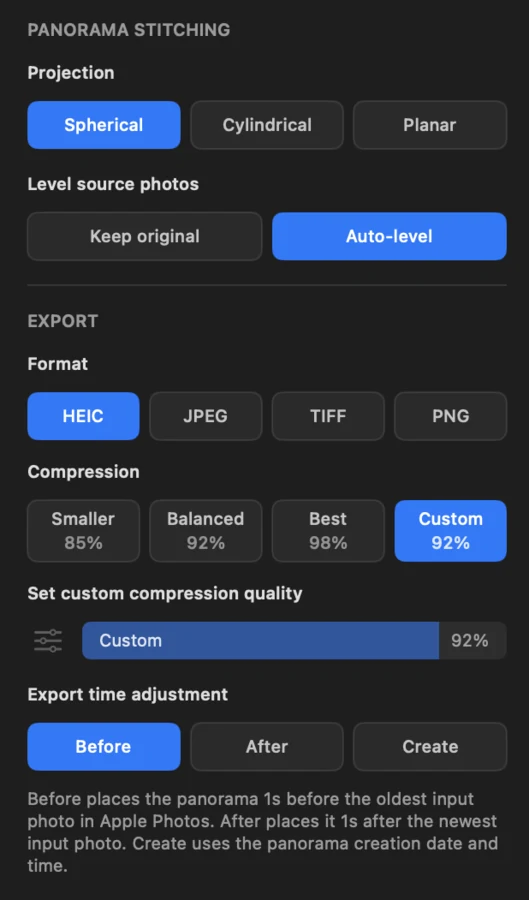
Choose HEIC for Apple workflows and supported HDR preservation, JPEG for broad sharing, PNG for lossless SDR output, or TIFF for editing and archive workflows.

PanoFuser inspector export settings
Export settings
PanoFuser inspector metadata for source and output image
Source and output metadata

Mac workflow

Watch the full flow when you want to see it move.

Two short Mac recordings show the import-to-create path and the adjustment-to-export path. They load only when you choose to play them.

Import and create
Adjust and export

HDR and output

Keep the result vivid, organized, and ready to save.

The same focused workflow continues after stitching: check the crop, preview supported HDR, choose where the panorama belongs, and automate repeated output steps when the source set is predictable.

PanoFuser HDR preview with a finished panorama and HDR button visible
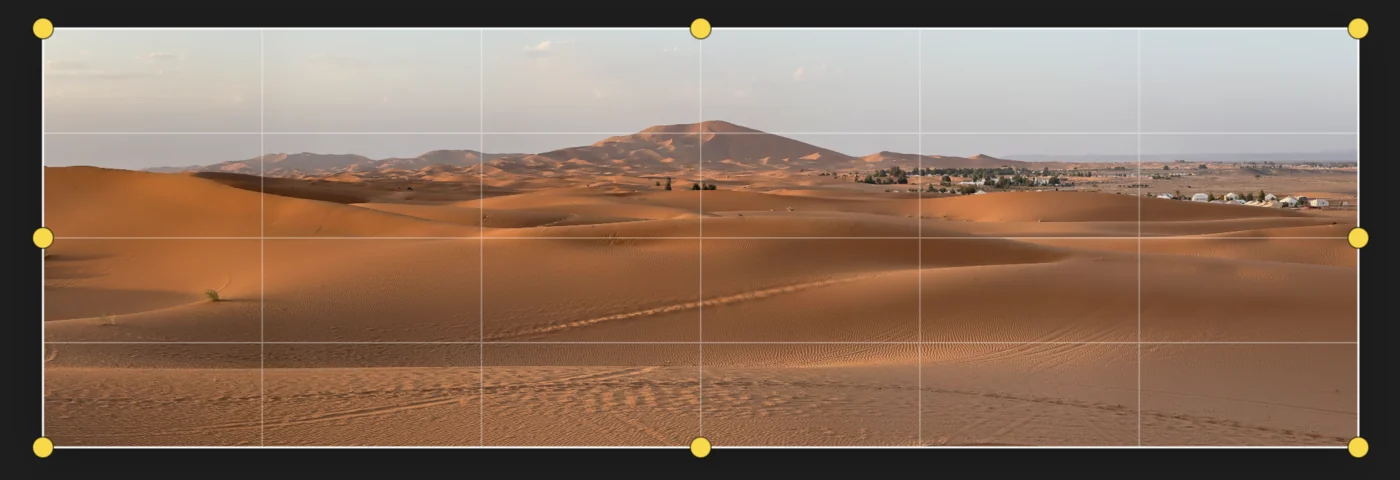
PanoFuser result grid with crop handles on a finished panorama

Check crop and horizon.

Use the grid and crop handles to judge composition, straighten the result, and export exactly the frame you want.

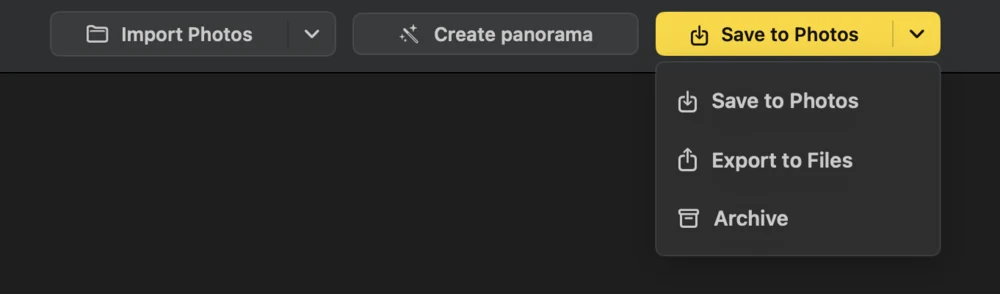
PanoFuser export menu with Save to Photos, Export to Files, and Archive

Choose the output path.

Save to Apple Photos, export a file, or build an archive folder with the panorama and source photos.

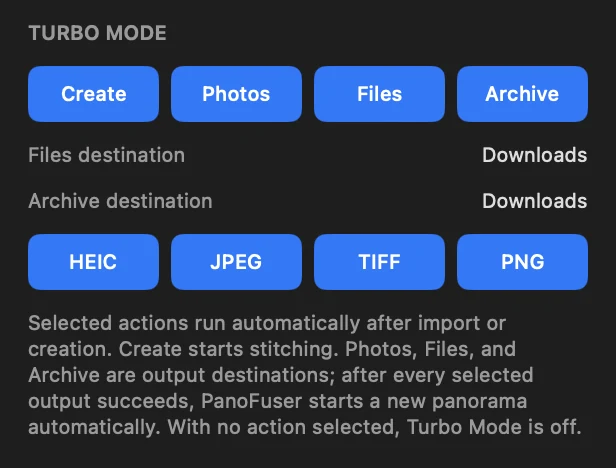
PanoFuser Turbo Mode settings for automatic create, Photos, Files, and Archive actions

Automate trusted steps.

Turbo Mode can run Create, Photos, Files, and Archive actions automatically when you already know how you want the job handled.

Mac, iPad, iPhone

One workflow, shaped for each screen.

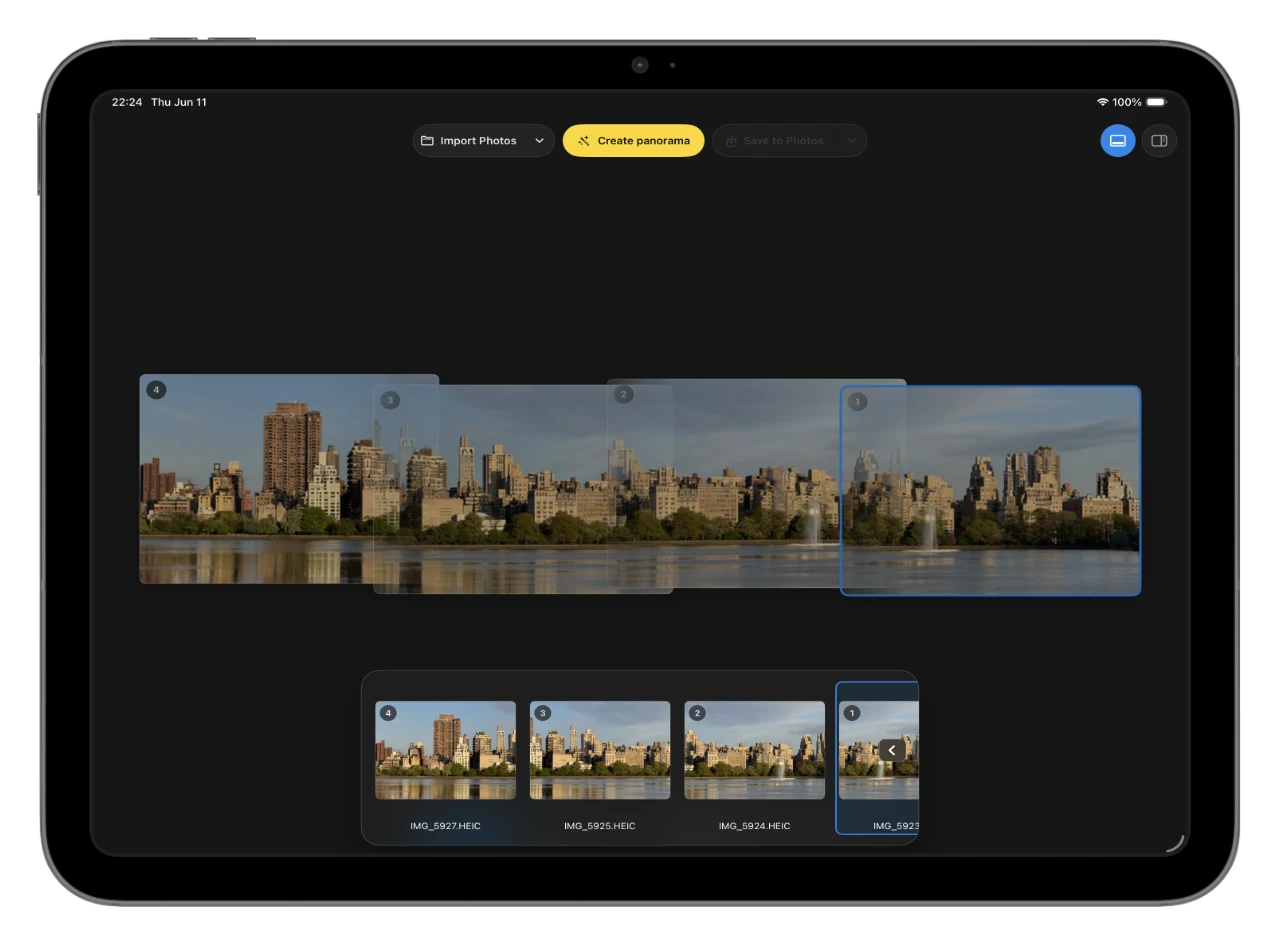
Use the device that fits the moment: a wide Mac workspace for review, a touch-first iPad canvas, or a compact iPhone workflow when you are still on location.

PanoFuser running on Mac with overlapping city photos arranged for panorama creation
Mac Finder import, drag and drop, wider review, detailed export controls.
PanoFuser running on iPad with the panorama creation controls visible
iPad Touch-first source review, crop, straightening, and guided capture.
PanoFuser running on iPhone with overlapping panorama source photos in a compact layout
iPhone Create from your library or capture source photos while you are still there.

Privacy

Your panorama work stays local.

No uploads

Panorama creation and export happen on your Mac, iPad, or iPhone.

No account

PanoFuser does not require sign-in for normal panorama creation.

No tracking

The app does not collect analytics and does not track users.

Originals stay untouched

PanoFuser writes a new panorama output and leaves source photos as they are.

iCloud originals: If a selected Photos original is stored only in iCloud, PanoFuser asks first. If you confirm, Apple Photos downloads it through Apple's own Photos/iCloud path. PanoFuser still does not upload your images anywhere.

Current version

PanoFuser 1.3.2 is the current release.

The 1.3 line adds integrated Help, supported HDR preview, improved HDR and SDR stitching performance, compact mobile toolbar polish, and refinements for result preview and crop handling.

Read release notes

App Store

Ready for the purchase link.

Once the public App Store URLs are approved, this section is ready for the Mac, iPhone/iPad, and bundle links. Until then, the page avoids publishing placeholder store URLs.

Mac App Store link pending iPhone and iPad link pending

FAQ

Practical answers before you buy.

Why not just use the iPhone panorama mode?

The built-in sweep is convenient. PanoFuser is for cases where you already have source photos, want to use a camera set, need more controlled crop and export, or want the result back in Photos.

Does PanoFuser upload my photos?

No. Panorama creation, preview generation, and export happen locally on your device.

Does it modify my source photos?

No. PanoFuser writes a new panorama output and leaves the originals untouched.

Can I create panoramas from camera photos?

Yes. Import the photos as files or bring them into Apple Photos first, then create the panorama in PanoFuser.

Can I use HDR photos?

For supported HDR photo sets, PanoFuser can preview HDR on HDR-capable displays and preserve HDR appearance in HEIC panorama exports. JPEG, PNG, and TIFF exports are SDR.

What if stitching fails?

Try more overlap, fewer photos, stronger visual detail, a different order, Source Tilt, or overlap trim.